
14. Email Signature Setup

SG HUB · LESSON 14
Email signature
Build your approved signature in SG Hub and publish it straight to Gmail.
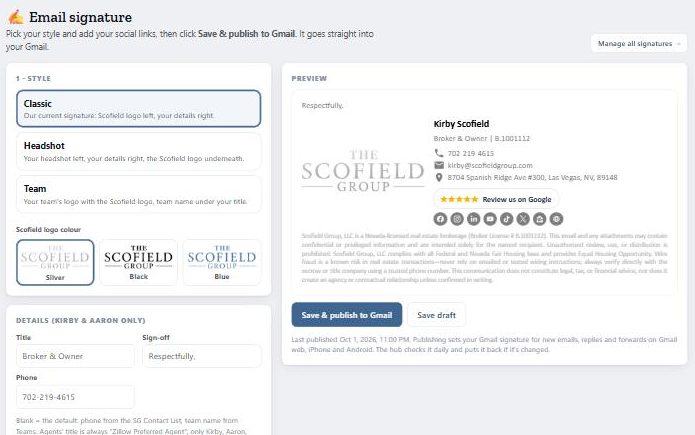
Set it up
- In SG Hub, click your photo (top right) → Email Signature (sg-hub.com/signature).
- Pick a style: Classic, Headshot (uses your Profile photo) or Team (your team logo, once approved).
- Pick a logo colour: silver, black or blue.
- Add your social links. Only the ones you fill in show.
- Click Save & publish to Gmail.
What fills in for you
Your name, title, phone and license come from the office. Agents’ title is “Zillow Preferred Agent”.
Required Gmail setting
- Open Gmail → Settings → See all settings.
- Go to Signature.
- Set “On reply/forward use” to your signature.
- Click Save changes.
Don’t edit it in Gmail
Never change your signature inside Gmail. SG Hub puts the approved one back every day. To change it, change it in SG Hub.