
15. Listing Offer Tool

SG HUB · LESSON 15
Listing Offer Tool
Every listing gets a public offer page. Every offer lands in one place, with seller nets and a side-by-side comparison.
1. Launch: the offer page and MLS remarks
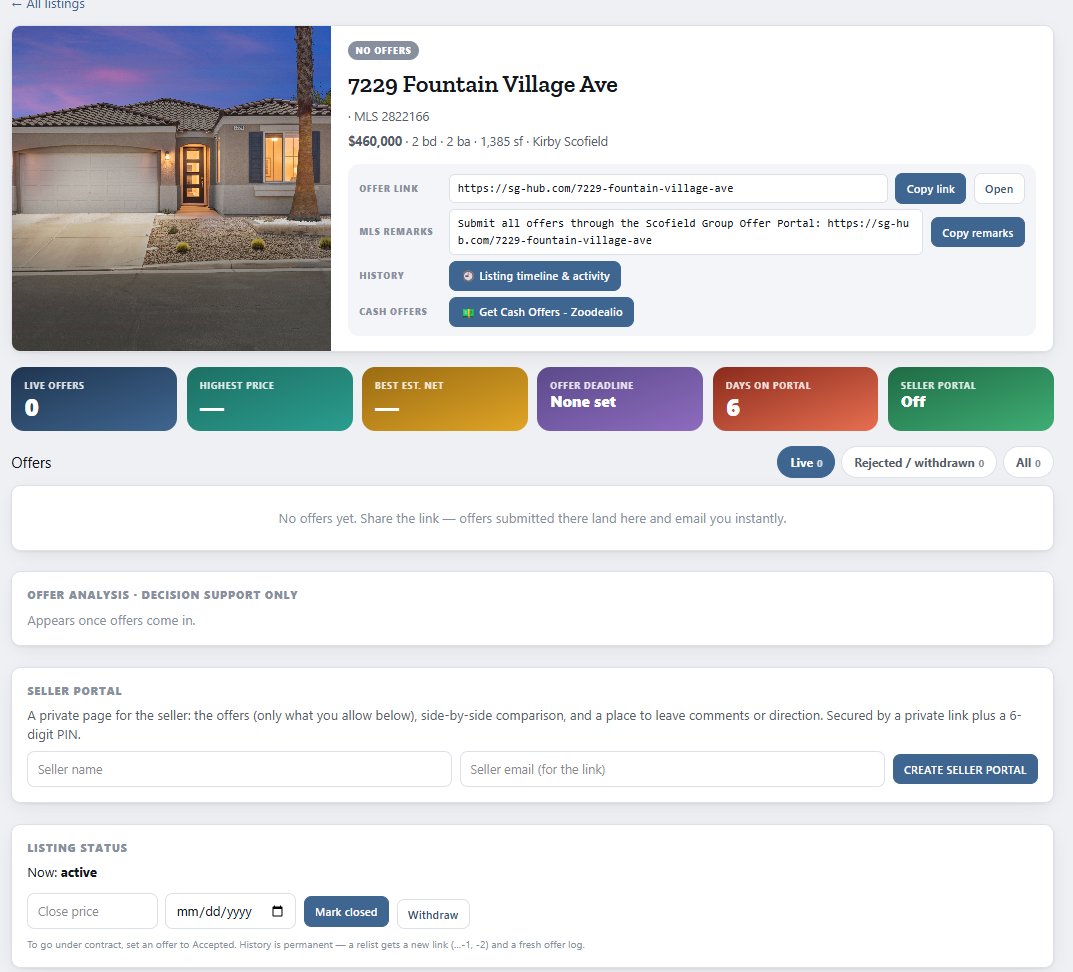
- Every listing gets a public offer page at sg-hub.com/<address> — for example sg-hub.com/7229-fountain-village-ave.
- In SG Hub → Listing Offers, open the listing and use the copy button for the MLS remarks.
- Paste it into the MLS Agent-to-Agent Remarks: “Submit all offers through the Scofield Group Offer Portal: <link>”.
2. How buyer agents submit
- Buyer agents need no login.
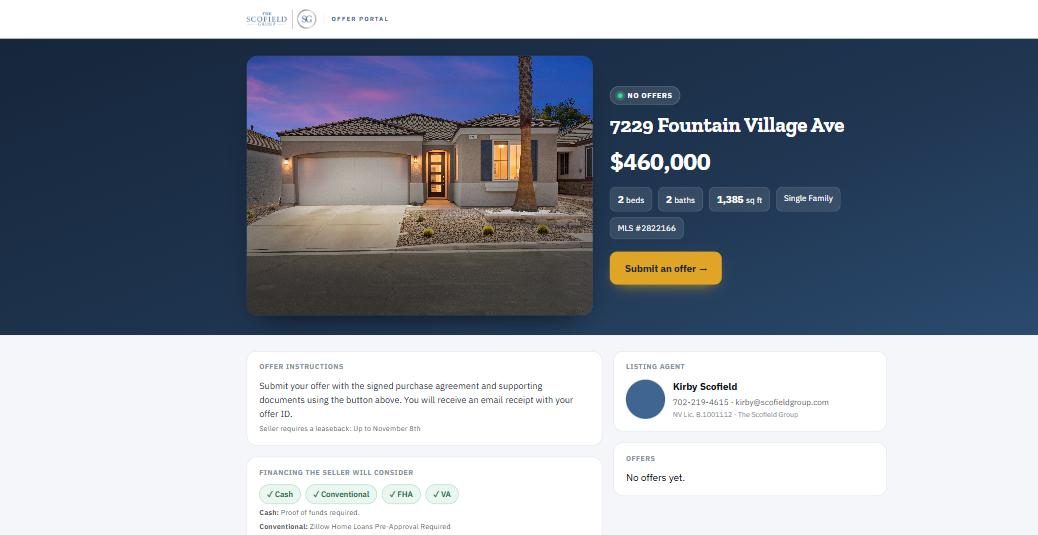
- They fill the form and upload the signed offer, plus a pre-approval (financed) or proof of funds (cash).
- They get an emailed receipt with an offer ID (for example SG-7229FV-004).
- You get a “New Offer Received” email and a notice on Home.
3. Review and negotiate
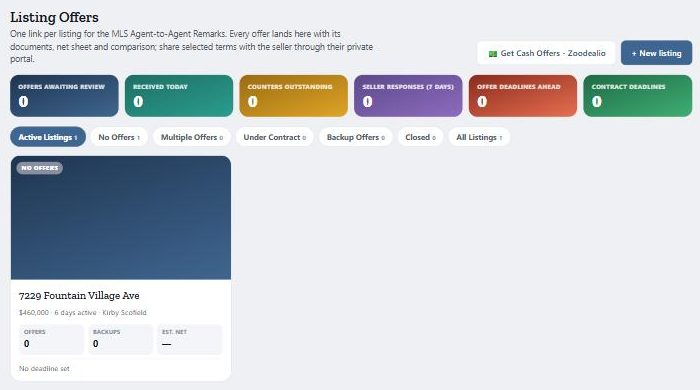
- In SG Hub → Listing Offers you see every offer, estimated seller nets, a side-by-side comparison and a factual analysis — never a recommendation.
- Record counters.
- Accept one — the listing goes under contract — and ask the others about backup.
A real example: two offers, side by side
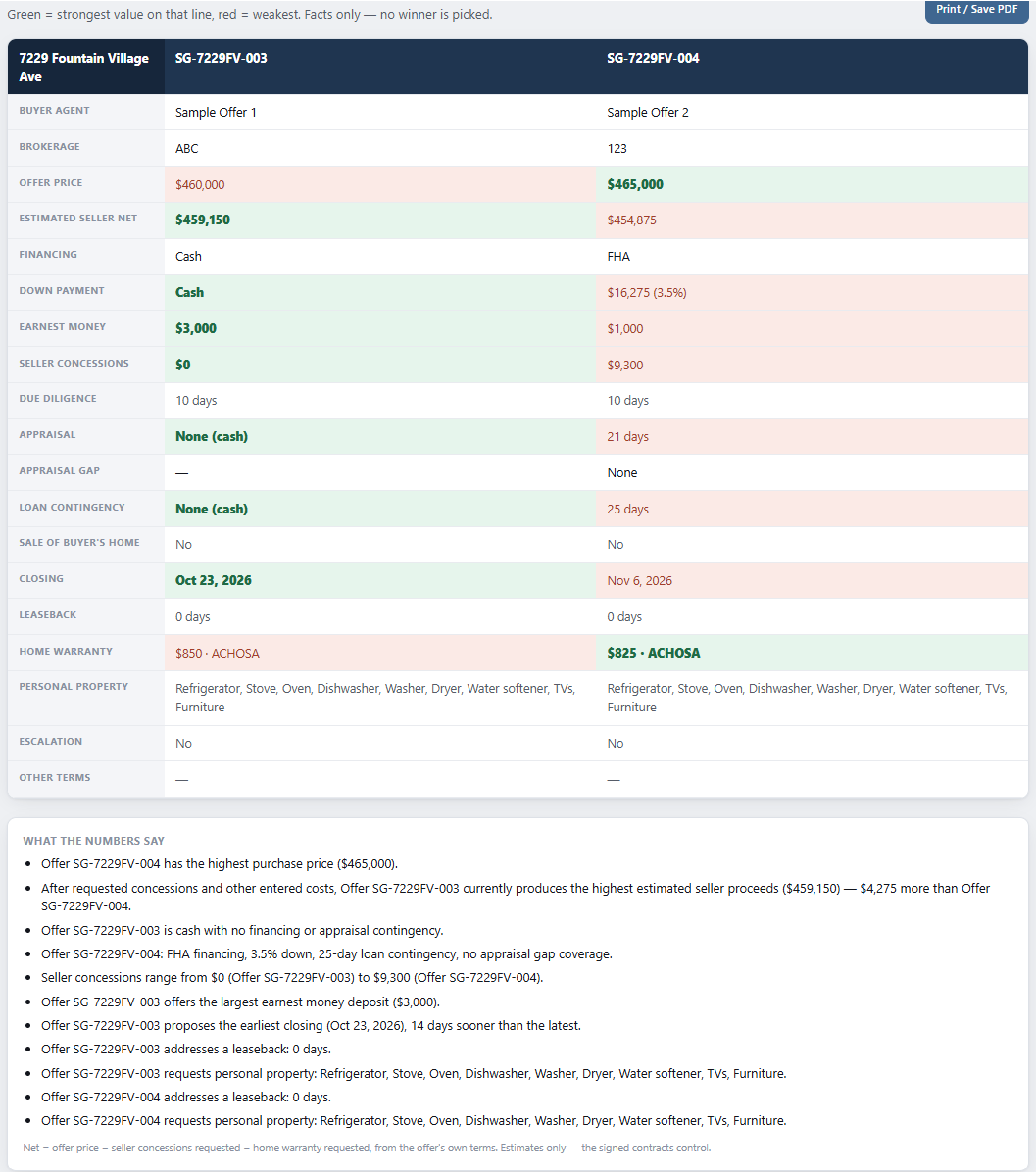
A listing with two live offers. Tick the offers you want, then click Compare Offers or Analyze Offers with AI.
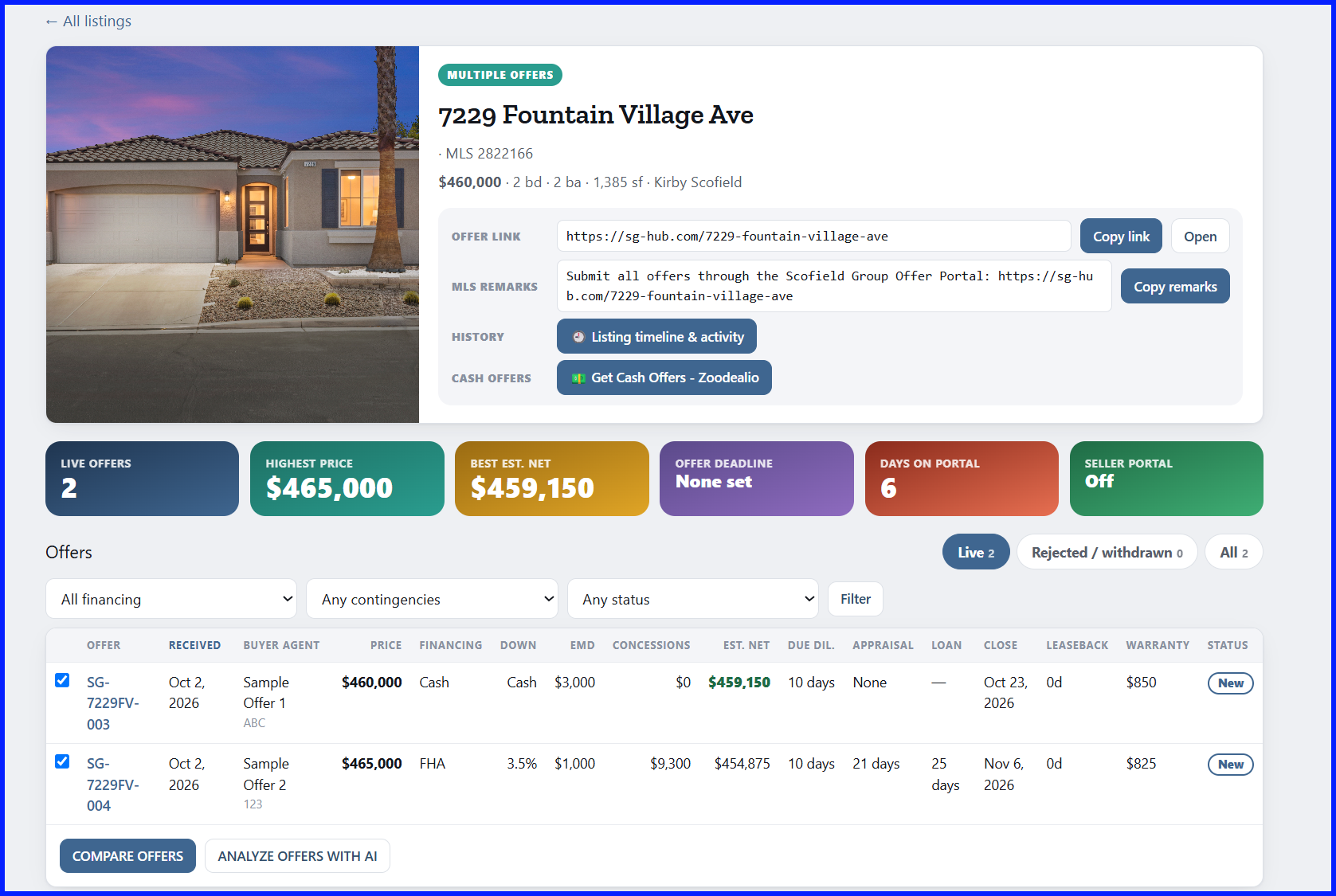
Read the nets, not just the price. Offer 004 is $5,000 higher ($465,000) but asks for $9,300 in seller concessions. Offer 003 is cash at $460,000 with $0 concessions. After concessions and the home warranty, Offer 003 nets the seller $4,275 more ($459,150 vs $454,875). The highest price is not always the best net.
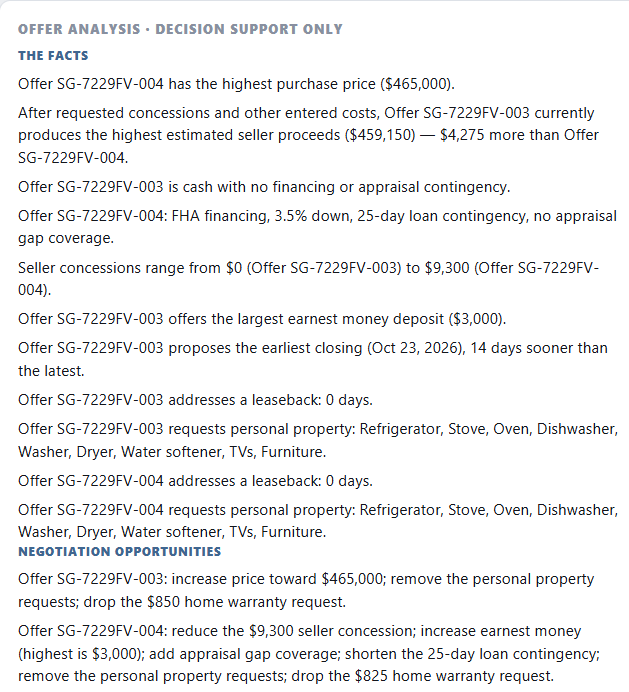
Tip: re-run the analysis after every new offer or counter, so it matches the offers on screen before your seller sees it.
4. Seller communication
- On the listing, enter the seller’s name and email and click Create seller portal. The seller gets a private link plus a 6-digit PIN.
- You control exactly what the seller sees.
- Seller direction comes back to you.
Nets are estimates
Seller nets in SG Hub are estimates. The signed contracts control.